Family Spend · Getting started
Your first week with Family Spend
Six small steps. None of them takes long, and by the end of the week your household is looking at the same list and the same numbers.
-
Step
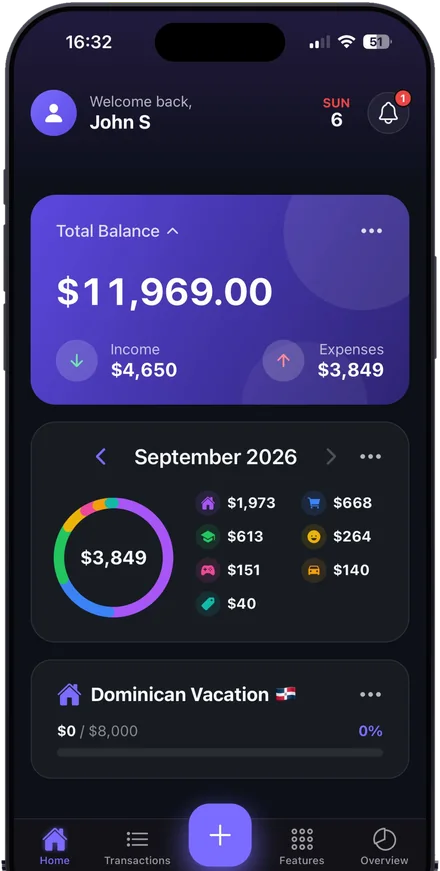
Install and create your space
Get Family Spend from the App Store, sign up with your email and create a space for your household. It's free.
A space is simply your household's corner of the app: its list, its budget, its people.
-
Step
Invite the other person who shops or spends
Open Invite Users in the app, tap Share Code and send the 6-character code to your partner, and to anyone else in the house who buys things. They enter it under Join Space; codes are good for 7 days. This is the step that matters most. One person logging alone is a diary. Two people is a shared picture.
Sharing a space is part of Premium. One subscription covers everyone you invite, up to 5 people, and joining is free for them. The first month is free on the monthly plan.
-
Step
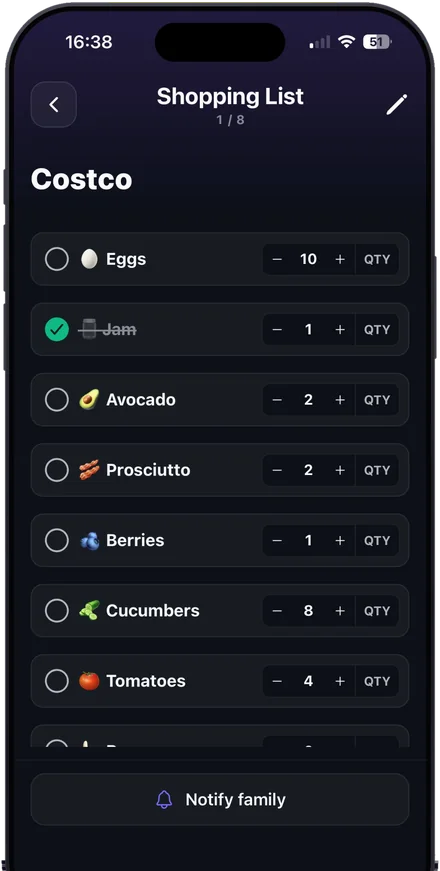
Put five things on the shopping list
Add five things from your phone. Then have your partner check one off from theirs. That small “oh, it just updated” moment is the whole idea.
Heading to the store? Tap Notify family so everyone can add their last-minute items.
-
Step
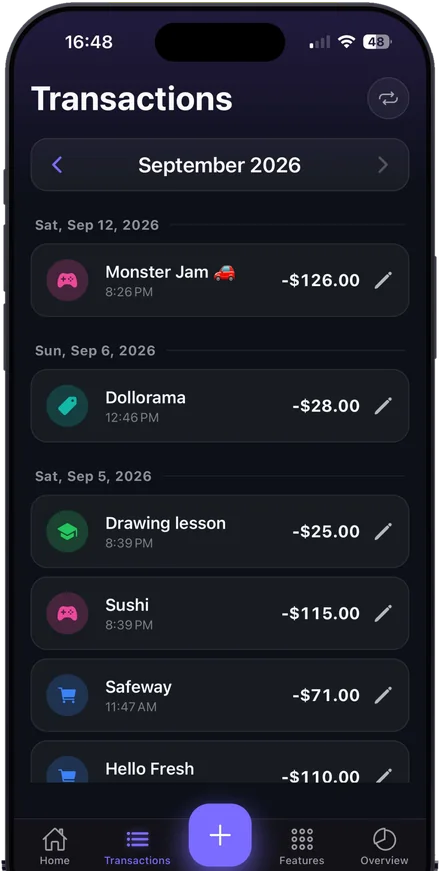
Log this weekend's spending
Amount, category, done. Don't try to backfill the whole month. Just log what you spend from today, and ask your partner to do the same.
Rent, internet, the car payment? Set them up once as recurring expenses and they'll log themselves.
-
Step
Set one budget and one savings goal
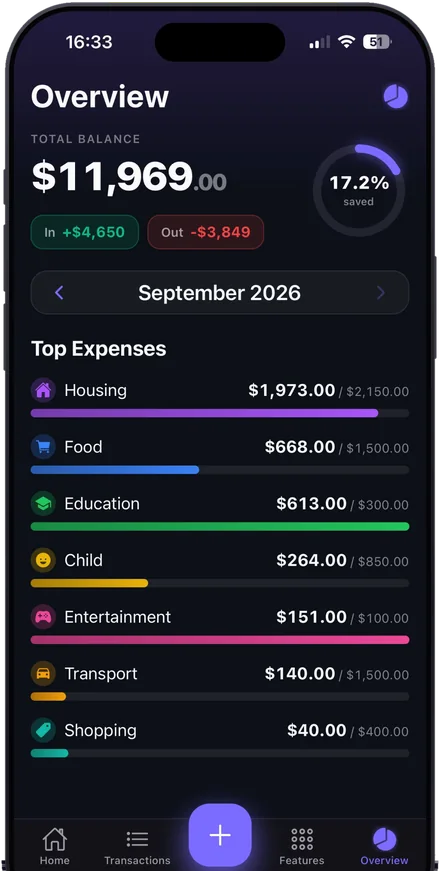
Groceries is the obvious first budget. Pick a number that feels roughly right. You can change it any time. Then add one goal you both care about, like a trip.
You'll see the budget bar fill up during the month, while there's still time to do something about it.
-
Step
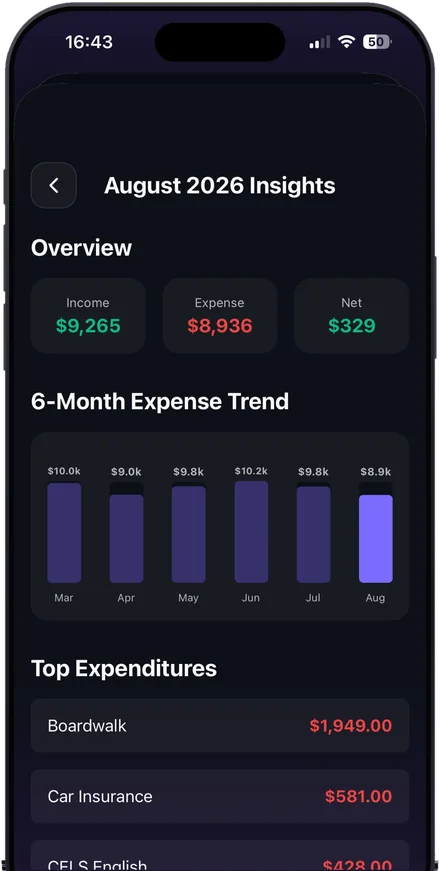
On the 1st, open the monthly report together
Sit down with a coffee and open last month's report. Income, spending, the biggest expenses, and how it compares with earlier months.
That's the “so that's where the $500 went” moment.
Quick answers
Do we both need Premium?
No. One subscription covers your whole household, up to 5 people in one shared space. Nobody else has to pay.
Is there an Android app?
Not yet. Family Spend is iPhone only for now. If you'd use it on Android, let me know below. That's how I'll decide when to build it.
Is my data sold or used for ads?
No. No ads, no analytics SDKs in the app, and your data is never sold. The details are in the Privacy Policy.
How do I cancel?
On your iPhone: Settings → your name → Subscriptions. Subscriptions are billed by Apple, so that's also where refunds are handled. More on the Support page.
Want Family Spend on Android?
Send a one-line email and I'll write back once when it's ready. Your address is used for that one message and nothing else.
If something annoyed you, tell me: [email protected]. If it helped, a rating on the App Store helps more than you'd think.